Pathfinder Installation
Installing Pathfinder is a simple task. This guide walks you through the steps and highlights potential pitfalls.
Step 1
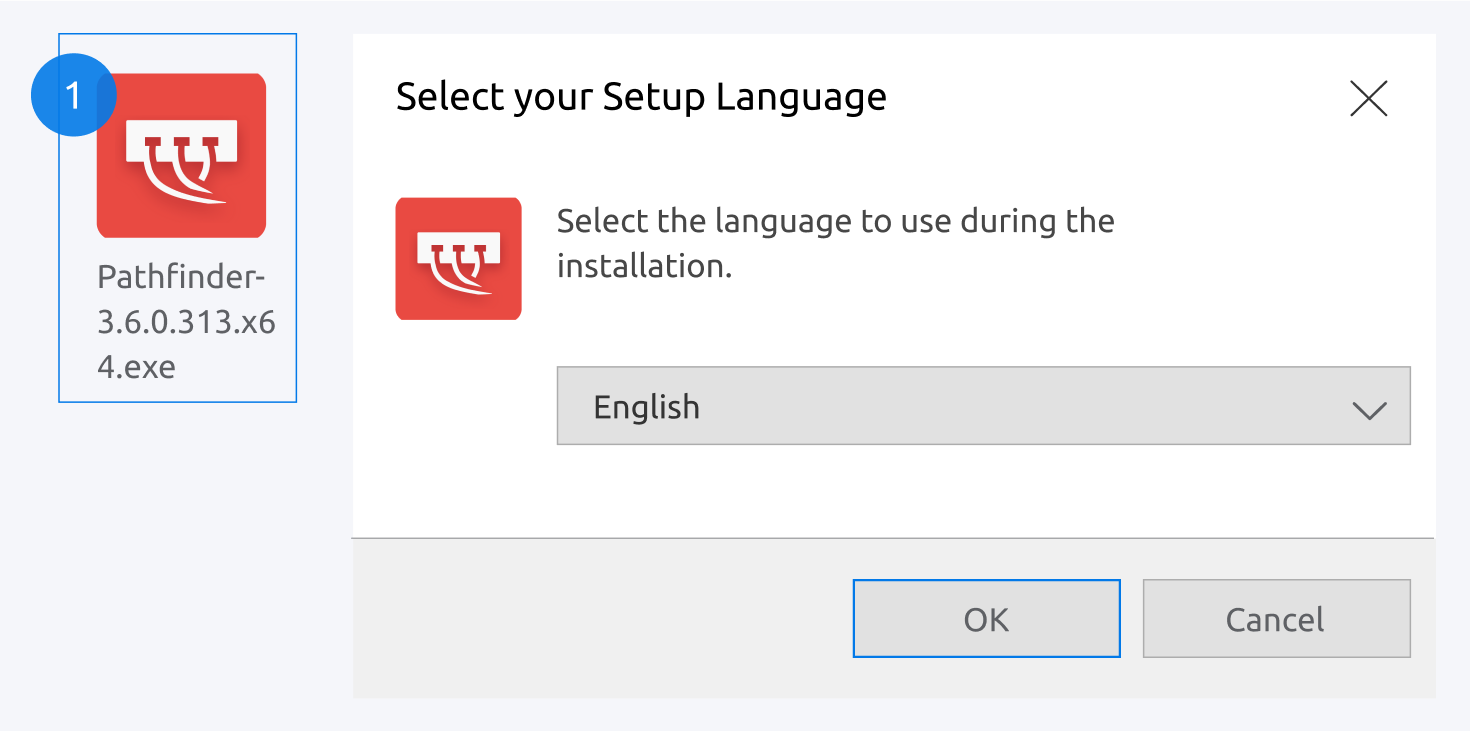
Open the Pathfinder installer and select the setup language (English or German).
Click OK to proceed. The setup wizard will guide you through the installation process.
Step 2
Choose your installation type: Local or Portable.
The default local installation path is: C:\Program files\Pathfinder
You can also check Show advanced options to manage additional settings in the next window.
Click Next to continue.
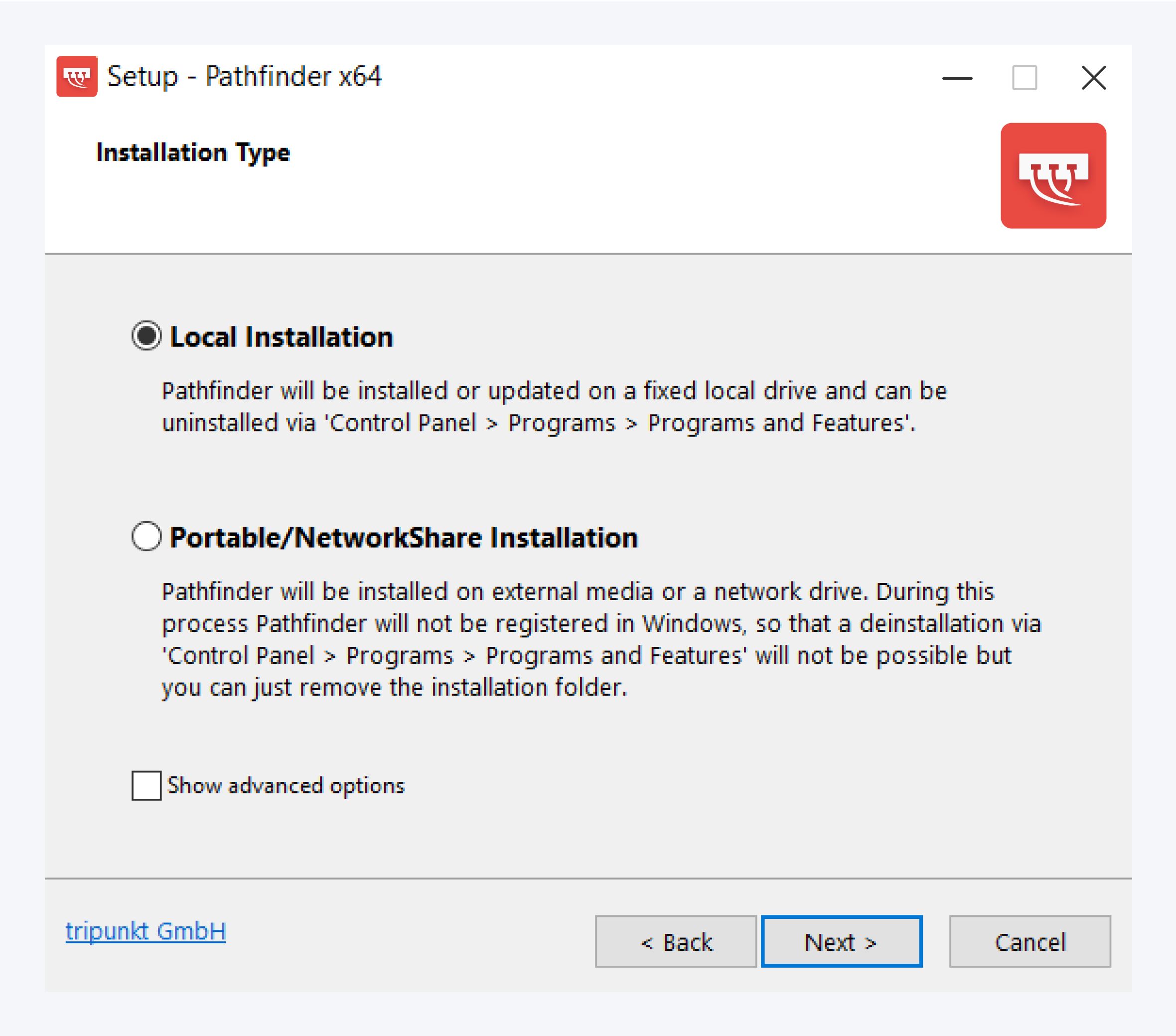
Note: To view logs of the application load process, you can choose to install the Pathfinder Log Viewer under Show advanced options.
Step 3
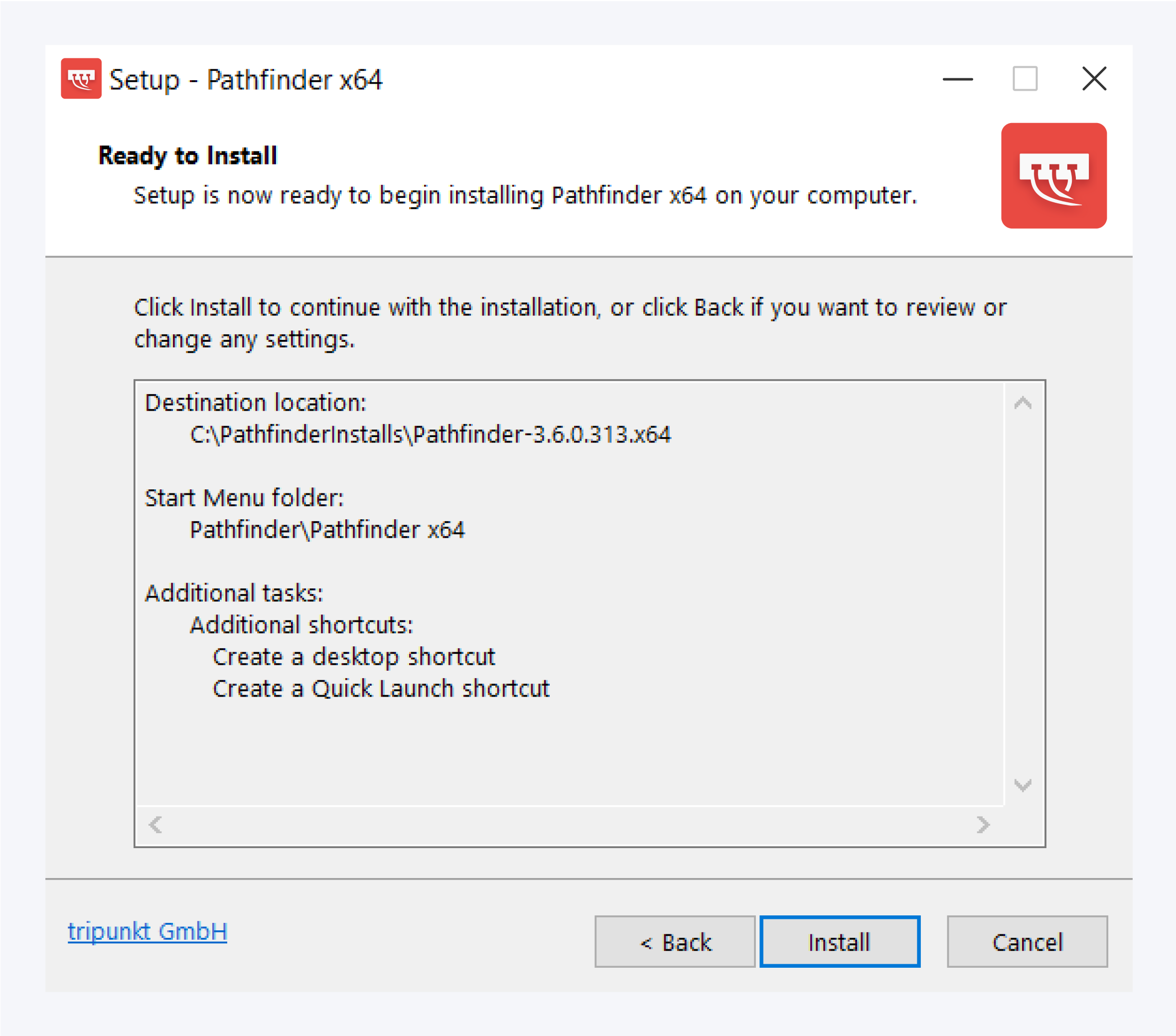
After the installation directory is set, click Install to set up Pathfinder.
If you are not using the latest version of Pathfinder, after installation the application will automatically perform a web update to the latest version.
Ensure you have an active internet connection for this step to succeed.
Step 4
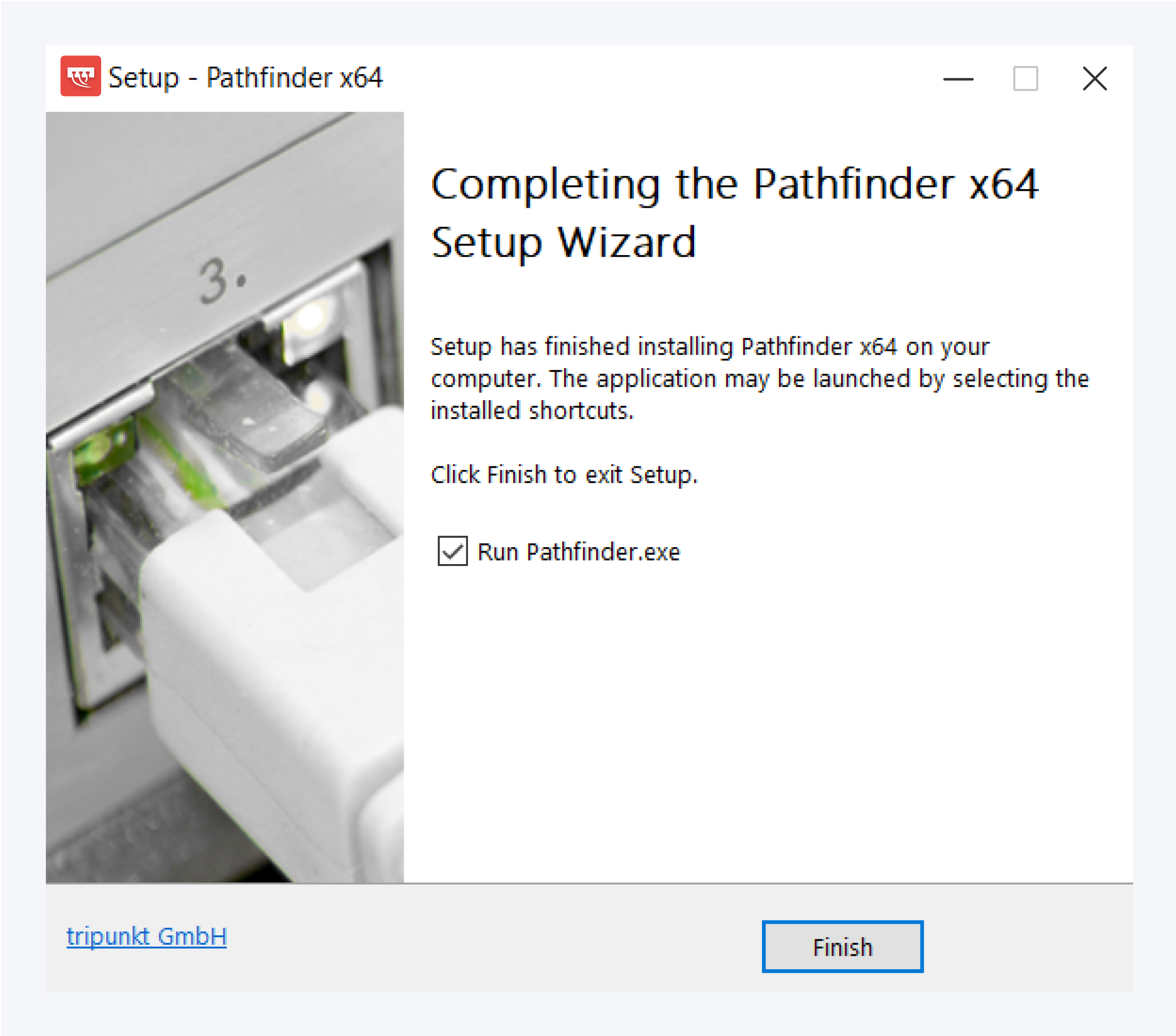
Click Finish to launch Pathfinder.
If you want to launch Pathfinder later, uncheck Run Pathfinder.exe and click Finish to close the installer.
Before you can access the login screen, Pathfinder will prompt you for your license.
For more information on activating your Pathfinder license, see: License activation.
If you followed all the steps correctly, Pathfinder should now be installed on your device.
If you encounter issues, please contact our support team for assistance.
Step 5
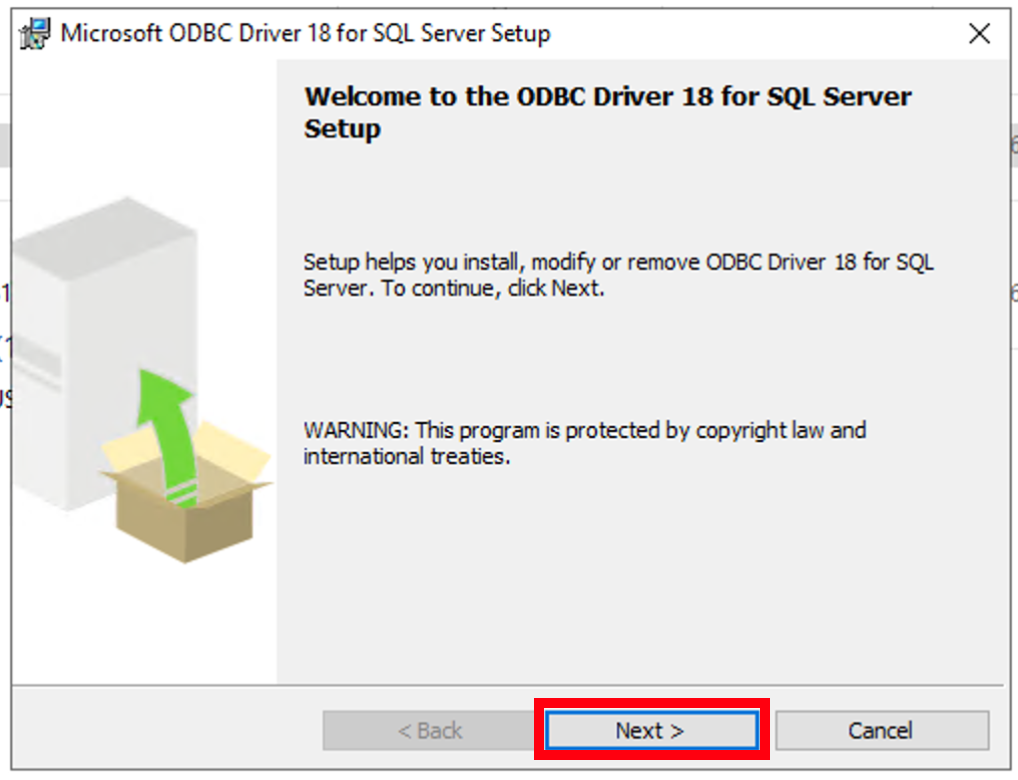
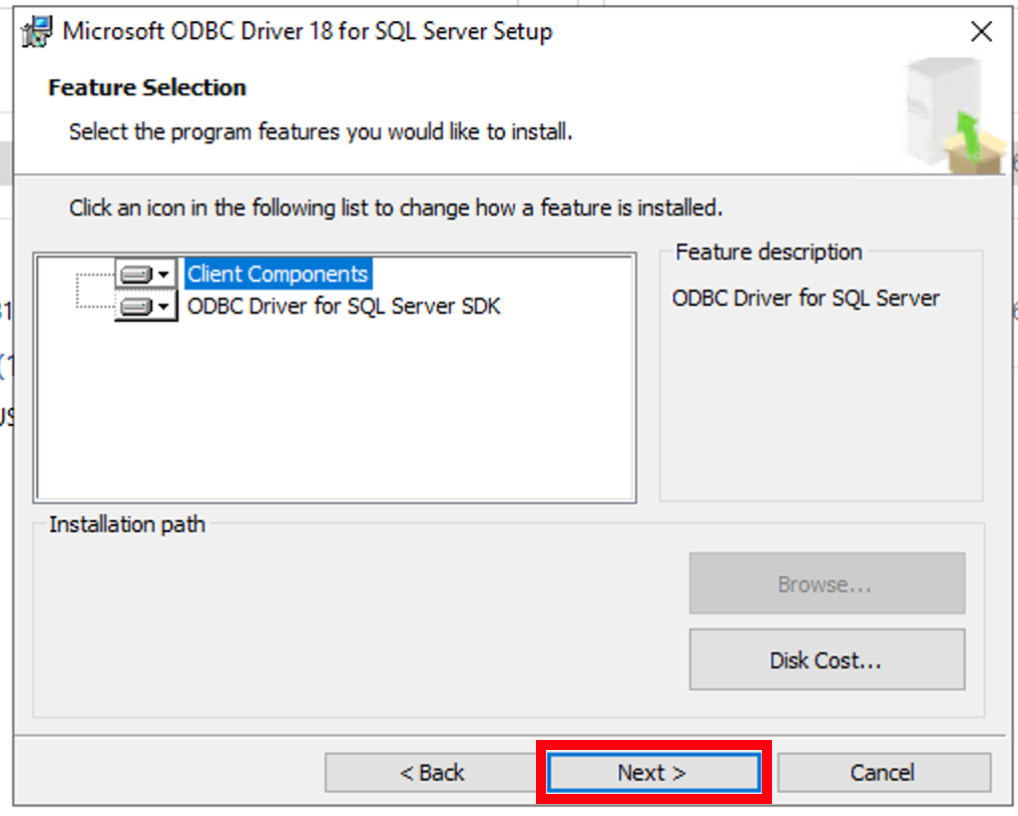
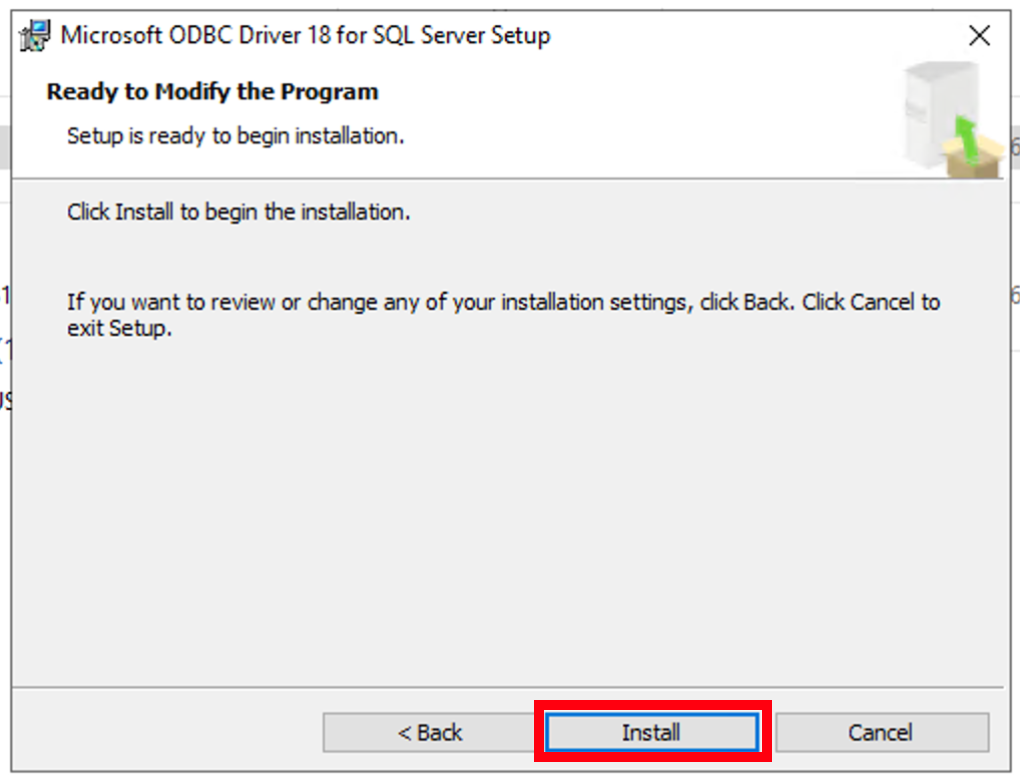
Please install Download Microsoft ODBC Driver 18 for SQL Server (x64) on you lokal Machine. Default installtion.
Configuration
Pathfinder ports and URLs
To use Pathfinder correctly, ensure the following URLs and ports are reachable:
| URL / Endpoint | Port | Purpose |
|---|---|---|
| https://www.pathfinder.support | 443 | Catalog Service (from version 3.0) |
| http://dev.tripunkt.de | 80 | Catalog Service (up to version 2.9.x) |
| https://pathfinder.support | 443 | Update service and license activation |
| Customer Information Portal | — | Requires the Pathfinder ID |
| OpenStreetMap data | — | Map data (external) |
| https://tripunkt.atlassian.net | 443 | Service desk |
| https://manual.pathfinder.de | 443 | Online manual |
| *@tripunkt.de | — | Mail support |
PCP Infrastructure Specific
| URL / Endpoint | Port | Purpose |
|---|---|---|
| SECRC-S-SQL0001.se.abb.com / 138.221.50.33 | 1433 TCP | SQL - Server |
SQL Setup
to connect your Pathfinder Client to the SQL server ypu have to Press F8 and Click on the Pathfinder Icon on the Desktop or Start Menu.
Please enter the follwing:
| Gruppe | Server | Datenbanktyp | Datenbankname | Port | Login | Passwort | Standardver | Verbinde |
|---|---|---|---|---|---|---|---|---|
| — | SECRC-S-SQL0001.se.abb.com | MsSql | Pathfinder | 1433 | ****** | ****** | ✅ | Start |